Here, we introduce two methods for playing music written in Pytakt MML. One method is to convert it to a standard MIDI file (aka a MIDI file) and play that. The other method is to send MIDI messages directly from Pytakt to a synthesizer (software or hardware for waveform synthesis) for playback.
Using the pytakt command, which becomes available after installing Pytakt, you can create MIDI files from music written in MML by entering the following line from the shell (Terminal, or PowerShell on Windows). The string cde corresponds to MML notation, indicating that the notes C, D, and E should be played in sequence with quarter notes. test.mid is the filename of the MIDI file that will be created.
$ pytakt -o test.mid -m 'cde'To play the MIDI file, follow methods specific to each operating system.
The same task can also be performed interactively from the Python interpreter. Running the pytakt command without arguments launches the Python interpreter with the pytakt library loaded. From there, you can output MIDI files as shown below.
$ pytakt
pytakt version 1.1.0
>>> mml('cde').writesmf('test.mid')
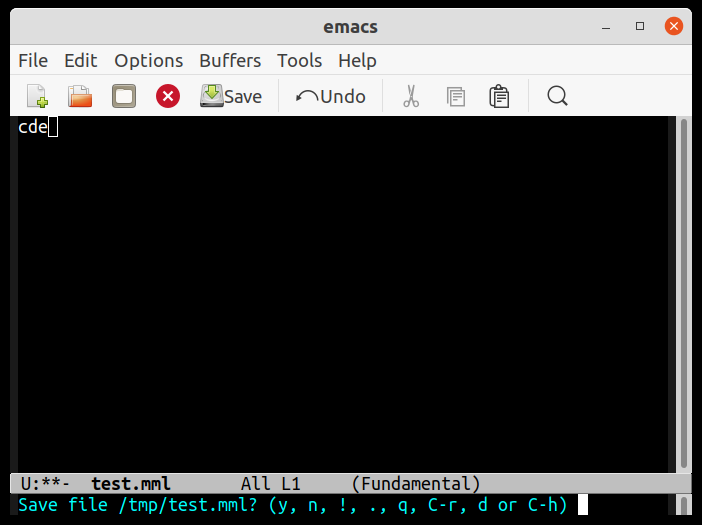
In addition, you can store MML text in a file and convert it to a MIDI file. For example, using your preferred text editor (emacs in this example), enter the content cde and save it as test.mml.
Then, you can convert it to a MIDI file using the pytakt command as below.
$ pytakt -o test.mid test.mmlPlaying directly from Pytakt eliminates the need for MIDI file conversion and also allows you to play music with piano roll display.
To play directly with Pytakt, you need either a software synthesizer built within your PC or an external synthesizer such as a MIDI keyboard. Below are examples of setup procedures to use a software synthesizer for each operating system.
Windows: The “Microsoft GS Wavetable Synth” software synthesizer is provided by default, so no setup is required.
Mac: The simplest method is to use GarageBand. Launch GarageBand and create a new project (when creating a new track, select “MIDI Software Instrument”). This allows GarageBand to function as a software synthesizer whenever it is running. However, it does not seem to support changing sounds via MIDI program changes or assigning different sounds per MIDI channel. If you want those features, installing FluidSynth is recommended.
Linux: You need to install the TiMidity package on your OS and run it as a daemon. To run it as a daemon, execute timidity -iA -Os & (In the author’s environment, I had to reduce the buffer size like timidity -iA -Os -B2,8 & to avoid tempo slowdown at the beginning of songs. Please adjust it as needed).
Once the setup is complete, launch pytakt as shown below to display the piano roll window.
$ pytakt -m 'cde'  (For MML in the command-line)
$ pytakt test.mml  (For the file)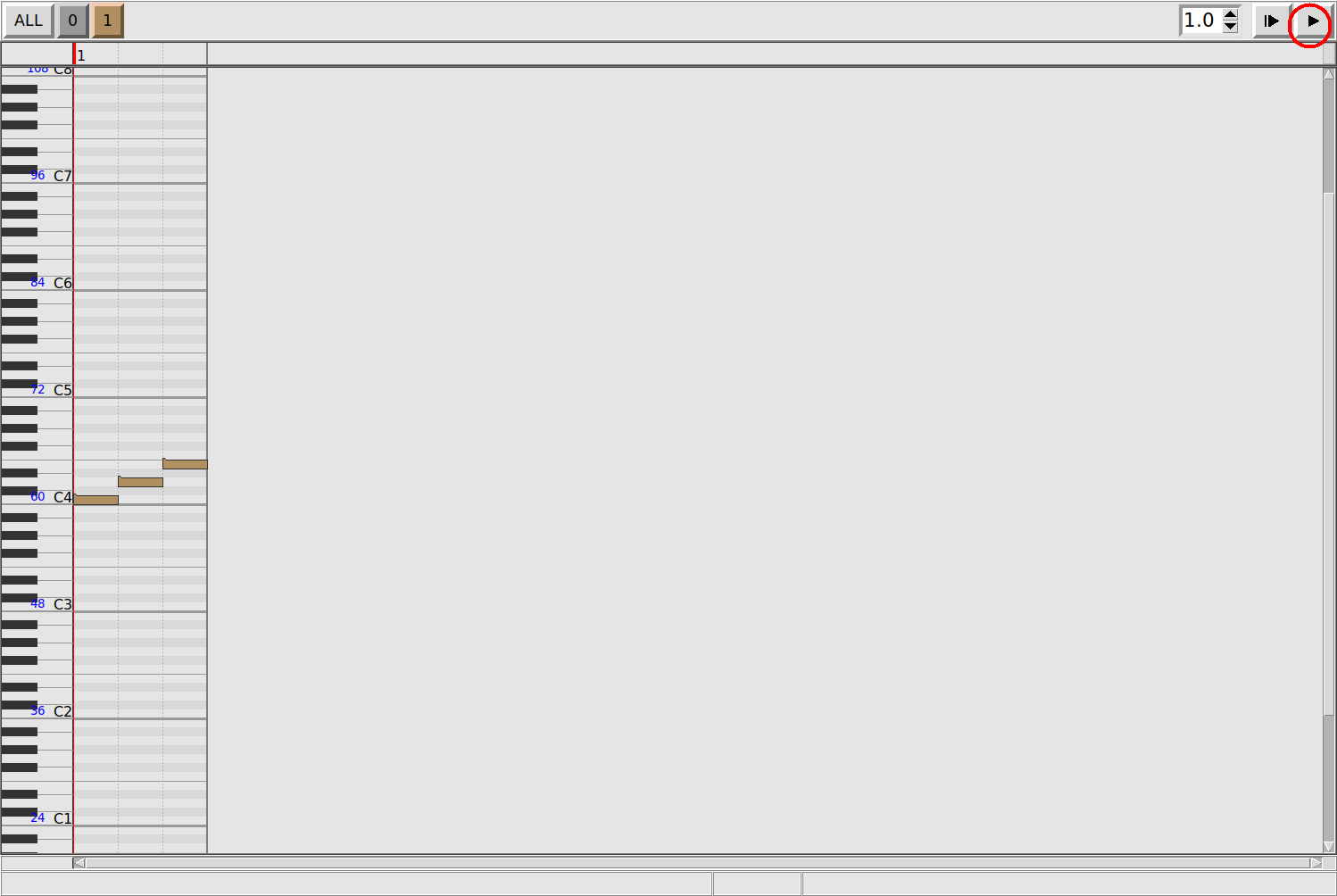
Press the play button at the top right to start the performance, and press it again to stop. To play without displaying the piano roll, specify the -p option as shown below.
$ pytakt -p -m 'cde'  (For MML in the command-line)
$ pytakt -p test.mml  (For the file)
When running interactively from Python, use play() or show() as shown below.
$ pytakt
pytakt version 1.1.0
>>> play('cde')   # or mml('cde').play() to play
>>> mml('cde').show() # to show the piano rollWhen playing directly from Pytakt, if multiple MIDI output devices are available, you may need to select which one to use. You can view the list of output devices using pytakt -l.
$ pytakt -l
MIDI Output Devices:
    [0] 14:0 Midi Through Port-0
 >  [1] 129:0 TiMidity port 0
    [2] 129:1 TiMidity port 1
    [3] 129:2 TiMidity port 2
    [4] 129:3 TiMidity port 3

MIDI Input Devices:
    [0] 14:0 Midi Through Port-0

'*': opened   '>': currently selected
From the display above, it can be seen that the currently selected output device is “[1] TiMidity port 0”. To change this to, for example, “[4] TiMidity port 3” for playback, use the -d option.
$ pytakt -d4 -m 'cde'
$ pytakt -d4 test.mml
$ pytakt -d4
pytakt version 1.1.0
>>> play('cde')
Specify the number displayed in the brackets after -d as shown above, or specify part of the device name, such as -d "port 3".
When running Python interactively, you can change the output device later using set_output_device().
>>> set_output_device(3)
>>> show_devices()   # Confirm that the output device has been changed.
MIDI Output Devices:
    [0] 14:0 Midi Through Port-0
    [1] 129:0 TiMidity port 0
    [2] 129:1 TiMidity port 1
 >  [3] 129:2 TiMidity port 2
    [4] 129:3 TiMidity port 3

MIDI Input Devices:
    [0] 14:0 Midi Through Port-0

'*': opened   '>': currently selected
>>> play('cde') # Output to "[3] TiMidity port 2"You can also launch the Python interpreter and use MML within the Jupyter Notebook environment. In this case, you need to import the pytakt modules in advance using the following two lines:
from pytakt import *
from pytakt.midiio import *
The image below shows the process of importing and playing. If the MML string spans multiple lines, use triple quotes as shown below.

Provided that the music21 library and staff notation applications such as MuseScore are installed, and music21 has been configured correctly, you can display staff notation inline in the notebook as follows.
